

OptiFine has been one of the most trusted performance tools in the Minecraft community for years. Players use it to smooth out their gameplay, improve frame rates, unlock more visual controls, and run shaders that make the game look incredible. If you’ve been struggling with lag or want more control over how your game looks and feels, learning how to install OptiFine is one of the easiest ways to upgrade your experience. This guide walks you through the process step by step in a clear, practical way so you can set it up without confusion. Everything here is based on accurate, widely‑used installation practices followed by the Minecraft community and documented by sources such as the official OptiFine site and standard Java installation guidelines.
What OptiFine Does
OptiFine is a performance optimization tool built specifically for Minecraft: Java Edition. Most players install it to boost their FPS. Others use it because it opens up advanced graphics options that aren’t available in the regular game settings. These include shader support, custom lighting, detailed render controls, and fine‑tuned performance tweaks. Even older computers benefit from it, and stronger systems can use its settings for smoother animation and richer detail.
Part of what makes OptiFine popular is that it doesn’t change the core game. It enhances how the game runs, not how it plays. You still get the same Minecraft experience, but you have more control over how it performs.
What You Need First
Before installing OptiFine, make sure your system and game are ready. You need to be running Minecraft: Java Edition because OptiFine doesn’t work with Bedrock Edition. You also need the version of Java that matches your system. Most modern setups use the built‑in Java runtime that Minecraft installs automatically, but if you run into issues, installing the latest version of Java from Oracle’s website can help.
It’s also important that you download OptiFine only from optifine.net. That’s the official website, and it’s the only reliable source. Anything outside of it risks containing unwanted files or outdated versions. The official site is regularly maintained, and every OptiFine build listed there is published directly by the developer.
Download OptiFine
To start, open the official OptiFine website. You’ll see a list of versions organized by Minecraft release. Pick the version that matches the one you play. If you’re using a newer Minecraft version, it’s best to choose the latest OptiFine build, but older versions are also available if you need them.
After choosing your version, click the download button. This takes you to a short advertisement page. The site uses this to support development, so you’ll just need to wait a few seconds. You’ll see a small “Skip” button appear in the corner. Clicking it brings you straight to the actual download link. Save the file somewhere you can reach easily, such as your desktop or downloads folder.
The file you download will be a .jar installer. That’s normal because OptiFine is written in Java, the same language Minecraft uses.
Install the OptiFine File
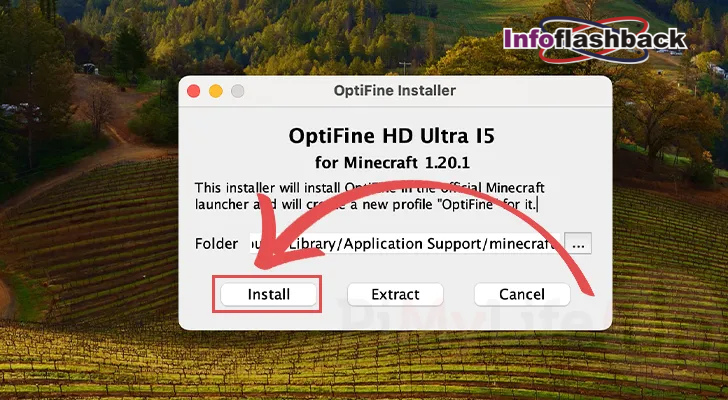
Once the download is complete, find the OptiFine .jar file and open it. Most systems will run it automatically, but if yours doesn’t, you may need to right‑click it and select the option to open it with Java. When the installer loads, you’ll see a simple window with a destination path. This path should point to your .minecraft folder. If Minecraft is installed normally, the installer finds this folder automatically.
Click “Install” to begin. The process only takes a few seconds. When the installer says “OptiFine is successfully installed,” you’re ready for the next step. At this point, OptiFine has created a custom game profile inside your Minecraft launcher so you can run it like any other version of the game.
Launch Minecraft with OptiFine
Open the Minecraft Launcher and look at the version list near the play button. You should see a profile labeled “OptiFine” followed by the version number. Select it and press play. If the launcher doesn’t show it, make sure the installation succeeded or check the “Installations” tab and enable “modded” versions.
Once the game loads, go into your settings. Open Video Settings, and you’ll see extra options that aren’t available in the normal game. This includes shader settings, advanced performance controls, and extended animation toggles. Seeing these options confirms that OptiFine is active.
Install OptiFine with Forge
Some players prefer using OptiFine together with Forge so they can run multiple mods at once. To do this, start by installing Forge. You can download it from the official Forge website by choosing the version that matches your Minecraft version.
After Forge installs, open your Minecraft folder and go to the “mods” folder. If it’s not there, start Minecraft with Forge once and it will create the folder automatically. Place your OptiFine .jar file inside that folder. You don’t need to run the OptiFine installer in this case. Now launch Minecraft with the Forge profile. Both Forge and OptiFine will load together, giving you mod support and performance upgrades in the same session.
Optimize Your FPS with Settings
Installing OptiFine is the first step. To really improve performance, take a few minutes to adjust your settings. Start by lowering your render distance, which controls how far the world loads around you. Reducing it from a high value to something moderate makes a big difference in FPS.
Next, switch graphics from “Fancy” to “Fast.” This lowers the detail of leaves, clouds, and similar visuals but boosts FPS noticeably. Turning off smooth lighting and disabling unused animations also helps. Inside the Performance settings, look for options like Fast Math, Lazy Chunk Loading, and Smooth FPS. These can stabilize your frame rate and keep the game running smoothly during movement.
Every computer behaves differently, so it’s worth experimenting until you find a combination that feels right. OptiFine gives you fine‑tuned control, so a little time spent adjusting can create a big upgrade in how the game feels.
Fix Common Installation Issues
Even though OptiFine is simple to install, a few common issues can show up. If the .jar file doesn’t open, your system might not be associating Java with .jar files. Installing or updating Java usually fixes this.
If Minecraft crashes after launching with OptiFine, check that the version numbers match. OptiFine must match your Minecraft version exactly. Trying to run mismatched versions often causes startup errors.
Another common issue is Minecraft not showing the OptiFine profile. If this happens, go to the “Installations” tab in the launcher. Look for a checkbox that says something like “show modded versions” or “show all versions.” Turning that on usually reveals the OptiFine profile.
If you’re using Forge and OptiFine together, make sure you downloaded OptiFine’s compatible build. Forge and OptiFine versions must match the same Minecraft release.
Extra Ways to Improve Performance
OptiFine does a lot on its own, but you can push your FPS even higher with a few additional steps. Start by updating your graphics drivers. NVIDIA, AMD, and Intel update their drivers regularly, and these updates often improve performance in games like Minecraft. Close background programs that take up memory or use your CPU unnecessarily. Even a few open apps can lower FPS noticeably.
Minecraft also lets you allocate memory through the launcher settings. Giving the game too much memory can slow it down, and giving it too little can make it freeze. A balanced amount usually works best. Many players find that two to four gigabytes is enough, depending on the system and whether they use mods.
If your computer is older, lowering your screen resolution inside the game can make a big difference. It reduces the number of pixels Minecraft must render, which lightens the load on your graphics card.
Final Thoughts
Learning how to install OptiFine is one of the easiest upgrades you can make to Minecraft: Java Edition. The installation is simple, the performance boost is noticeable, and the added graphics controls give you more freedom to shape your experience. Whether you’re trying to play smoothly on a slower laptop or you want to run gorgeous shaders, OptiFine gives you the tools to do it.
Once you have it installed, spend some time exploring the settings. Every system responds a little differently, and the best setup is the one that feels right to you. The combination of improved FPS, smoother gameplay, and deeper customization is why millions of players rely on OptiFine every day. With it installed, your game can run cleaner, look sharper, and feel better overall.
If you want help writing a shorter version of this article, adding screenshots, or creating a companion guide for shader installation, just tell me and I can build it for you.
you may also read: What People Search For About the kathleen nimmo lynch instagram Page
FAQs
1. Is OptiFine safe to install?
Yes. Just be sure you download it from the official OptiFine website. Third‑party sites can include unsafe files, so avoid them.
2. Do I need Forge to use OptiFine?
No. OptiFine works on its own. Forge is only needed if you want to use OptiFine alongside other mods.
3. Why won’t the OptiFine installer open?
This usually happens when Java isn’t installed or is outdated. Installing the latest version of Java fixes it most of the time.
4. Will OptiFine improve FPS on every computer?
It boosts performance for most players, but the exact results depend on your system. Older computers often see the biggest improvements.
5. Can I use shaders with OptiFine?
Yes. Once OptiFine is installed, you can add shader packs through the video settings menu without extra steps.